
By AI Peak Biz Team · September 3, 2026
Stop Double Bookings for Contractors with Two Way Calendar Integration

Two-way calendar sync is the configuration to use if you want to stop double-bookings for good. Connect your primary calendar with OAuth, choose which calendars get checked for conflicts, and pick one destination calendar for new appointments. That's the first move. If missed calls and slow follow-up are also costing you bookings, a managed AI front desk can connect to that same calendar and turn a ringing phone into a confirmed appointment automatically.
TL;DR:
- Two-way calendar sync with real-time FreeBusy checks significantly reduces double-bookings, especially when set to support live API calls rather than cached data.
- Grant only necessary OAuth permissions, with read-only access for availability and write access for appointments, and regularly re-authenticate tokens every few months.
- Always test the full booking flow at least a week after setup, including manual edits and cancellations, to ensure updates propagate correctly across systems.
- For high-volume inbound calls, integrating an AI front desk that answers, qualifies, and books appointments can recover revenue lost from missed calls.
- Use deliberate sync direction choices and comprehensive conflict-check calendar lists to prevent common booking errors and ensure appointment accuracy.
Table of Contents
- How Does Calendar Integration Booking Actually Work?
- Step-by-Step: Setting Up Your Calendar and Booking Integration
- Which Integration Approach Fits Your Business?
- What Mistakes Cause Missed or Double-Booked Appointments?
- When Should You Add a Managed AI Front Desk?
- Three Rules I'd Follow Before Trusting Any Booking System
- Where to Verify These Setup Steps Yourself
- Let AI Peak Biz Handle the Calls Your Calendar Can't Answer
- Sources
How Does Calendar Integration Booking Actually Work?
A booking system that talks to your calendar does three jobs: it checks whether a time slot is open, it writes a confirmed event when someone books, and it keeps both sides updated when something changes. Calendar integration for booking exists to check real-time availability, create the appointment, and sync reschedules or cancellations so nobody ends up double-booked. Miss any one of those three functions and the whole system breaks down quietly, usually right when you're busiest.
The availability check relies on something called FreeBusy data. Some scheduling tools poll your calendar every few minutes and cache the results, which is faster but leaves a small window where two people could grab the same slot before the cache refreshes. Others read FreeBusy in real time the instant someone selects a slot, which closes that gap but requires an API call at the exact moment of booking. Reading FreeBusy live rather than from a cache minimizes the odds of a rare simultaneous double-booking, though it depends on the scheduling platform actually supporting that mode.
Permissions matter more than most business owners realize. When you connect a calendar through OAuth, you're granting specific scopes, not blanket access. A read-only FreeBusy scope lets the app see when you're busy without exposing meeting titles or attendee names. A write-events scope lets it actually create appointments on your behalf. Connecting your calendar provider via OAuth lets the scheduling software read FreeBusy data and write events, and you should know exactly which of those two permissions you're granting before you approve anything.
Sync direction is the decision that trips up the most small businesses:
- One-way push: the booking tool writes appointments to your calendar, but events you create manually in Google Calendar or Outlook don't block new bookings.
- Two-way sync: appointments flow in both directions, so a personal event you add manually keeps that slot from being booked, and cancellations update everywhere.
Two-way sync prevents most of the "I forgot I had a dentist appointment and double-booked a client" scenarios that plague one-way setups, because the booking tool actually reads what's already on your calendar before offering a slot.
A booking event usually carries more than just a time stamp. Expect a title, the customer's name and contact info, a conferencing link if it's a virtual appointment, and sometimes a location field. When a customer reschedules or cancels, how that propagates depends entirely on your platform, and that's worth testing before you rely on it.
Step-by-Step: Setting Up Your Calendar and Booking Integration
Getting this right the first time saves you from untangling double-bookings later. Work through these steps in order.
- Inventory every calendar you use. List your primary work calendar, any personal calendar you sometimes book on, and shared team calendars. Decide right now which one will be the destination for new bookings.
- Standardize your time zone. Set it explicitly in both your calendar account and your booking tool. Don't assume they'll match automatically, especially if you travel or manage staff across regions.
- Connect via OAuth. Sign into Google Calendar or Outlook through the booking platform's connection flow and approve only the scopes you actually need. The connection step lets the scheduling software read FreeBusy data and write events once you configure working hours and buffers.
- Select conflict-check calendars separately from your destination calendar. Most platforms let you mark multiple calendars to scan for conflicts while sending new bookings to just one. Selecting several calendars for conflict checks, while writing bookings only to a chosen destination calendar keeps your booking log clean without missing a scheduling clash on a personal or shared calendar.
- Set your booking page details. Appointment duration, buffer time before and after each meeting, how far out customers can book, and a daily cap if you don't want back-to-back appointments all day. Buffer times before and after meetings matter for local service businesses that need drive time between jobs.
- Add conferencing and payment options if relevant. Google Calendar's appointment schedules include controls for conferencing, booking forms, and reminders, though some features need an eligible Workspace subscription.
- Book a test appointment as if you were a customer. Use a different browser or device, go through the full flow, and confirm the invite lands in your calendar correctly.
- Edit and cancel that test appointment. Watch whether the change actually reflects across both systems, or just on one side.
- Check your notification settings. Confirm the customer got a confirmation email or text, and that you got an internal alert.
- Review your integration logs for errors, particularly anything related to token expiration, before you consider the setup finished.
Pro Tip: Run your test booking at least a week after setup, not immediately. Some OAuth tokens are issued in a "testing" mode that expires after seven days, and you want to know that before a real customer hits a broken booking link.
Once live, build a light operational habit around this. Review your re-authentication policy every few months, since OAuth tokens issued for third-party apps can expire or require re-consent if the app's project sits in testing mode. Add staff calendars to your conflict-check list if more than one person can take an appointment. And decide in advance what a customer sees on their confirmation screen and email, because that's the moment they trust you enough to show up.
Which Integration Approach Fits Your Business?
Not every business needs the same setup, and picking the wrong one usually means either overpaying for features you don't use or hitting a wall you didn't see coming.
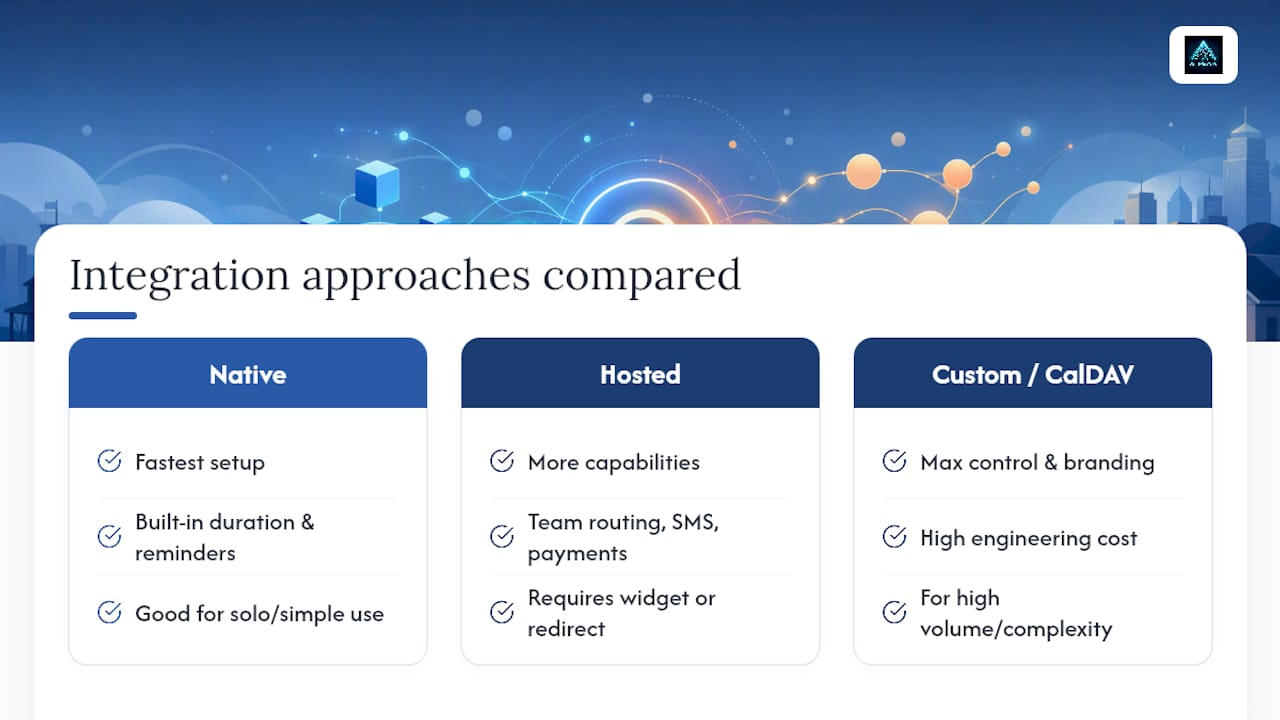
Native provider booking is the fastest path. Google Calendar's built-in appointment schedules let you set duration, availability windows, and reminders without touching a third-party tool, though some features require an eligible Google Workspace or Google One subscription. Microsoft 365 offers similar native scheduling, but many businesses outgrow it and move to specialized schedulers for automated reminders, round-robin assignment among staff, and embeddable widgets. Native booking suits a solo professional with simple, repeatable appointments and no branding demands.
Hosted third-party schedulers trade some setup simplicity for real capability: team routing across multiple staff calendars, automated SMS reminders, payment collection at the time of booking, and reporting. They scale better as your business grows, but most require embedding a widget or redirecting customers to an external booking page, which raises a branding question worth thinking through.
Embedded widgets versus full-page redirects is a smaller decision with outsized impact on trust. Widgets delivered through an iframe can weaken a customer's sense that they're still on your site, especially if the fonts and colors don't match. Businesses that care about brand continuity tend to prefer widgets with custom styling, or a fully native booking page built into their own site.
Custom or CalDAV integrations give you the most control over branding and workflow, but they cost real engineering time and ongoing maintenance. This route makes sense only once your booking volume or complexity justifies the investment. For most single-location or multi-resource businesses, room and equipment scheduling is where native calendars start to strain. As one integration guide on venue scheduling puts it, Google or Microsoft Calendar alone often isn't built for multi-resource booking scenarios like meeting rooms or shared equipment, which is exactly when specialized software earns its cost.
What Mistakes Cause Missed or Double-Booked Appointments?
Most scheduling failures trace back to a handful of repeatable mistakes, and every one of them is fixable in under an hour once you know where to look.
- The sync-direction trap. Choosing one-way push without checking existing calendar events is the single most common cause of double-bookings. Deciding intentionally whether your booking system must honor calendar-created events, or only push new bookings into a calendar, should be a deliberate configuration choice, not a default you never checked.
- Assuming edits sync both ways when they don't. Some integrations only sync booking creation to the calendar and treat manual calendar edits as view-only, meaning if you move an appointment inside Google Calendar itself, the booking system never finds out.
- Ignoring OAuth token expiration. Tokens can lapse quietly, and the first sign is usually a customer complaining they booked a slot that "wasn't really open."
- Mismatched time zones across devices. Test your booking flow from a phone set to a different time zone before you trust it with real customers, especially if you serve clients who travel or work remotely.
- Checking the wrong calendars for conflicts. If a staff member's personal calendar isn't in your conflict-check list, you'll double-book them without ever seeing an error.
Privacy deserves a specific mention here. FreeBusy access reveals when you're busy, not what you're doing or who you're meeting. Confirm your visibility settings before launch so you're not accidentally exposing event titles or attendee details to a booking tool that only needed to know your calendar was occupied.
Pro Tip: Set a recurring 90-day reminder to re-run your test booking flow from scratch. Integrations that worked fine at launch can quietly break after a calendar provider pushes an update, and you'll want to catch that before a customer does.
When Should You Add a Managed AI Front Desk?
Calendar sync solves the scheduling half of the problem. It does nothing for the calls and texts that never turn into a booking in the first place.
If you're missing more than a handful of calls a week, or leads sit unanswered for hours before someone gets back to them, that's the signal to look at a managed AI front desk rather than another scheduling plugin. Volume is the deciding factor: a solo contractor fielding five calls a day can probably keep up manually, but a business getting dozens of inbound calls and texts daily is almost certainly losing bookings to slow response times, whether anyone's tracking it or not.
An AI voice agent like the one in AI Peak Biz's Ascent plan can answer calls and book appointments by phone, and missed-call text back (Summit) can reply within moments, alongside the same calendar connection covered above. Pairing calendar integration with an always-on AI front desk recovers revenue that would otherwise be lost to missed calls and delayed follow-up.
Bringing one online follows the same setup logic as any calendar integration, just with a wider scope of responsibility:
- Grant the same calendar permissions you'd give any booking tool: FreeBusy read access and write-event access to your chosen destination calendar.
- Set your availability rules once, including buffers and scheduling windows, so the AI books within the same constraints your staff would.
- Run test bookings and test missed-call scenarios before going live, exactly as you would with any new scheduling software.
- Review the first week of bookings closely to confirm lead qualification and appointment details are landing correctly.
For service businesses drowning in missed calls, this is often the difference between a calendar that's technically well configured and a business that's actually capturing more of the opportunities that come in.
Three Rules I'd Follow Before Trusting Any Booking System
Most calendar integration advice focuses on which software to buy. That's the wrong starting question. The right one is whether you've actually verified the thing works, because a beautifully configured integration that nobody tested is worse than no integration at all. It fails silently, and you find out from an angry customer who showed up to a double-booked slot.
Rule one: check every calendar that could hold a conflicting event, not just the one you look at most. Rule two: default to two-way sync unless you have a specific reason not to, because the cost of a missed personal appointment blocking your calendar is nothing compared to the cost of a client discovering their slot was double-booked. Rule three: automate the follow-up, not just the booking. A calendar that syncs perfectly still doesn't call back the lead who hung up after four rings.
The businesses that get the most out of calendar integration treat it as infrastructure, not a set-and-forget feature. They test it quarterly, they know exactly which permissions they granted, and they've automated the parts of follow-up that used to fall through the cracks. That's the difference between a system that looks right on paper and one that actually holds up on a busy Tuesday.
Where to Verify These Setup Steps Yourself
Before you finalize your configuration, it's worth checking the primary documentation rather than relying on secondhand summaries, since calendar providers update these features regularly.
Start with Google's guide to creating an appointment schedule for the exact controls available on duration, availability, and booking forms. For anything involving custom development or a deeper look at permissions, the Google Calendar API documentation on creating events covers OAuth scopes and event metadata in more technical detail. And for a plain overview of what calendar integration is supposed to deliver in the first place, the Mitel explainer on calendar integration features is a solid starting reference before you compare specific tools.
Let AI Peak Biz Handle the Calls Your Calendar Can't Answer
AI Peak Biz picks up where calendar sync leaves off: it's the missing piece for service businesses losing bookings to unanswered calls, not another scheduling app to configure. Once your calendar is connected with two-way sync and clean conflict checks, the AI appointment setter answers calls and texts fast, qualifies the lead, and books directly into that same calendar, day or night, without you lifting a finger.
This matters most for the businesses this guide was written for: HVAC companies, plumbers, roofers, landscapers, and home service contractors who lose real revenue every time a call goes to voicemail during a job. Missed-call text-back and lead qualification can work alongside your existing calendar setup, not instead of it, so the appointments booked follow the same buffers, availability windows, and destination calendar you already configured.