
By AI Peak Biz Team · August 30, 2026
Go Live in 3 to 5 Weeks: CRM Setup for Small Service Teams Without IT

Define the one problem your CRM must solve, map your process on paper, pick a simple SaaS CRM built for small teams, and roll it out in phases. Most teams of 2 to 15 people go live in 3 to 5 weeks. If your data is already clean and your process is nailed down, you can do it in one week. Assign an owner, map your stages, and test your import before you do anything else.
TL;DR:
- Ensuring data cleanliness by deduplicating contacts and running test imports reduces setup errors and prevents long-term data issues.
- Limiting automations to two or three at launch helps prevent errors caused by dirty data and maintains system reliability.
- Enforcing a single owner per deal and requiring key fields before stage changes promotes accountability and process consistency.
- Connecting email and calendar systems early is crucial for auto-logging activities, which significantly improves user adoption.
- Regular post-launch support, including weekly check-ins and permission reviews, sustains CRM effectiveness and prevents feature abandonment.
Table of Contents
- How Do You Plan a CRM Setup for Small Business Success?
- What Are the Core Settings a Small Business CRM Needs?
- How Do You Import Data and Connect Integrations Without Breaking Things?
- Which Automations Should You Build First?
- How Do You Train Your Team and Make the CRM Stick?
- What Should You Measure at 30, 60, and 90 Days?
- What Does a Publisher-Backed CRM Rollout Checklist Look Like?
- What Happens After Go-Live If Something Breaks?
- How Should Small Businesses Handle CRM Backups and Data Security?
- How Do You Build Reports and Dashboards That Actually Get Used?
- How Often Should You Update and Maintain Your CRM?
- What Are the Most Common CRM Implementation Mistakes to Avoid?
- Why Process Discipline Beats Automation Enthusiasm
- How Does AI Peak Biz Fill the Gaps in Your New CRM?
- Where Can You Find More CRM Implementation Guidance?
- Sources
How Do You Plan a CRM Setup for Small Business Success?
The biggest reason CRM rollouts fail isn't the software. It's skipping the planning step and jumping straight to configuration. Before you touch a single settings menu, you need clarity on what problem you're actually solving.
Are leads falling through the cracks between the first call and the quote? Is your team losing track of who owes a follow-up? Write the problem down in one sentence. Then define what success looks like in numbers you can check later, like a same-day follow-up rate above 90% or ten more booked appointments a week.
Next, map your process in plain language, not CRM jargon. Walk through what actually happens from "someone calls" to "we get paid," and write down who touches each stage. This becomes your pipeline blueprint later.
Decide your data scope now. You don't need five years of dead leads cluttering your new system. Bring in active customers and leads from the last 90 to 180 days, and leave the rest in an archive spreadsheet. Decide which fields are non-negotiable, like phone, email, and service type, before you import anything.
Finally, name one CRM admin. This person owns the setup, settings, and any disputes about "who owns this deal." Two admins with equal authority is a recipe for conflicting settings and confused staff.
Planning checklist:
- Write the one problem the CRM solves and the metric that proves it worked
- Map 4 to 6 process stages in plain language
- List required fields and what data gets migrated
- Assign one CRM admin with final say on settings
- Block 1 to 2 weeks for this phase before configuration starts
Pro Tip: Skip the "someday we'll need this" fields. Every extra required field is friction your team resents on day one, and unused fields are the number one reason CRMs get abandoned within 90 days.
What Are the Core Settings a Small Business CRM Needs?
Once your plan is on paper, configuration should take a few days, not weeks. Focus on the settings that make the CRM usable daily, not the ones that look impressive in a demo.
1. Set up users and permissions. Create accounts for everyone who touches customer data, then assign roles: Admin, Sales, and Ops (or whatever labels match your team). Admins control settings and fields. Sales sees and edits their own deals. Ops usually needs read access plus scheduling permissions. Keep permission levels to three or fewer at launch. Complexity here creates support tickets later.
2. Build your pipeline from your own process, not the default template. Every CRM ships with generic stage names like "Qualified" and "Proposal Sent." Rename them to match the process you mapped in planning. A landscaping company might use New Lead, Site Visit Scheduled, Quote Sent, Won, Lost. A dental practice might use New Patient Inquiry, Consult Booked, Treatment Plan Sent, Scheduled, Completed. Generic stage names are one of the fastest ways to make staff distrust the system.
3. Create only essential custom fields. Add the fields tied directly to your success metric and required data, and stop there. Enforce two hard rules: required fields must be filled before a deal can move stages, and every deal needs exactly one owner. Shared ownership on paper usually means no ownership in practice.
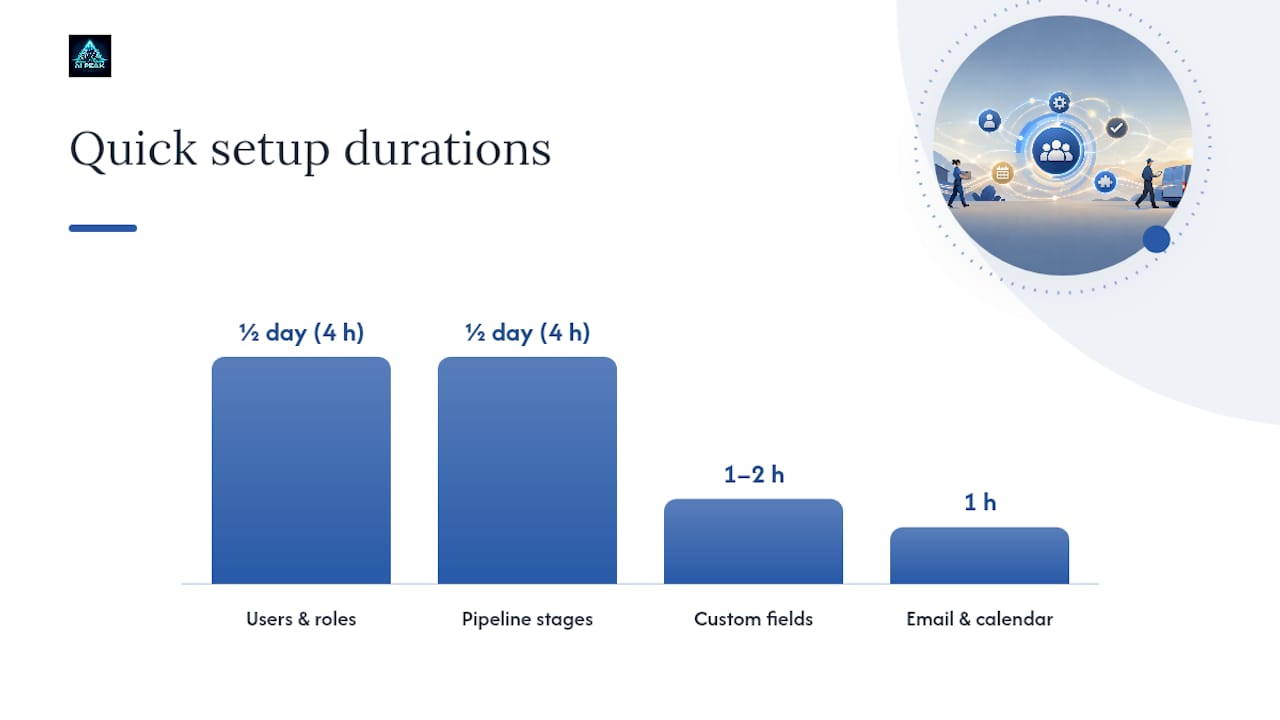
4. Connect email and calendar before anything else. This is the integration that matters most in the first 30 days, because it auto-logs calls, emails, and meetings without anyone touching the CRM manually. Skipping it means your team is stuck double-entering activity, and double-entry is what kills adoption fastest.
Quick setup checklist:
- Users and roles created (half a day)
- Pipeline stages renamed to match your process (half a day)
- Custom fields limited to 5 to 8 essentials (1 to 2 hours)
- Email and calendar sync connected and tested (1 hour, but verify it logs correctly)
How Do You Import Data and Connect Integrations Without Breaking Things?
Bad data import is the single most common reason a CRM setup for small business teams stalls in week two. The fix is unglamorous but effective: clean before you import, and test before you commit.
Start by deduplicating your contact list. Standardize phone formats and email casing, and delete contacts you haven't touched in over a year unless they're a known referral source. Messy source data becomes permanently messy CRM data if you skip this step.
Run a test import of 20 to 50 rows before touching your full list. Map your CSV columns to CRM fields carefully, and import in this order: contacts first, then companies, then deals. Importing deals before their related contacts exist is a common error that creates orphaned records nobody can find later, a process the implementation checklist at Your CRM Finder recommends specifically to catch mapping errors early.
Once the test import looks clean, verify field mapping matches what you expect. Only then run the full import.
Integration priority order:
- Email and calendar sync (do this first, it auto-logs activity)
- Website contact forms (captures new leads automatically)
- Phone, text, or an AI front desk tool for calls you miss during business hours
Hold off on advanced integrations like accounting software or marketing platforms until your core data is stable and your team has used the CRM daily for at least a month.
Pro Tip: Never skip the test import to save time. A bad full import means hours of manual cleanup versus 20 minutes catching the mapping error on a 30-row test batch.
Which Automations Should You Build First?
Automating too much too soon is one of the fastest ways to turn a promising CRM setup for small business use into a mess of broken notifications nobody trusts. Automations that trigger off dirty data compound errors instead of fixing them, which is why starting small matters more than starting fast.
Limit yourself to two or three automations at launch:
- Lead assignment: New leads route automatically to the next available rep based on territory or rotation.
- Follow-up task creation: A task fires automatically when a deal sits untouched for 48 hours in any active stage.
- Stage change notifications: The team gets a quick alert when a deal moves to "Won" or "Lost," so everyone stays aligned without checking the pipeline constantly.
Test each automation on a handful of dummy or low-stakes records first, and check the automation logs weekly for the first month to catch silent failures. If something breaks, disable it rather than letting it run wrong in the background.
Add more automations only after 60 days of stable, clean data. By then you'll know which manual tasks are still eating time, and that's where the next automation should go.
How Do You Train Your Team and Make the CRM Stick?
Training determines whether your CRM setup for small business becomes daily habit or an expensive app nobody opens after week three. Generic training with demo data doesn't transfer. Train with your real customers and real deals instead.
- Train by role, not all at once. Give Sales three or four daily tasks: log a call, update a stage, create a follow-up task, check the day's tasks. Give Ops their own short list focused on scheduling and status updates.
- Set go-live day rules and stick to them. Everyone starts the same day. No exceptions, no "I'll use the old spreadsheet for one more week." Required fields are enforced immediately, and every deal gets exactly one owner from day one.
- Run a daily checklist for the first week. A five-minute morning huddle covering what's due, what's stuck, and what needs an owner keeps small problems from becoming habits.
- Document with short videos, not manuals. A two-minute Loom-style screen recording showing "how to log a call" gets watched. A ten-page PDF doesn't. Name one point of contact for questions during week one.
Pro Tip: "No CRM, no commission" sounds harsh, but pairing training with a firm enforcement rule tied to something your team cares about is far more effective than asking nicely for a month straight.
What Should You Measure at 30, 60, and 90 Days?
Your first 90 days tell you whether the setup actually worked, not whether it looked good on paper. Track a short list of numbers against the success criteria you defined during planning.
Core KPIs to watch:
- Login and adoption rate (are people actually opening it daily?)
- Contact and deal enrichment rate (are required fields getting filled?)
- Number of open deals and average deal velocity (how fast deals move stage to stage)
- Win rate against the pipeline you mapped
At 30 days, focus on data cleanup and adoption gaps. Fix incomplete records and retrain anyone still avoiding the system. At 60 days, once usage is steady, add your next automation. This is also when many teams revisit the phased structure they used in setup and add a second wave of configuration. At 90 days, expand fields or reporting only after you've confirmed the basics are sticking.
Compare every number against the metric you wrote down in planning, not against a generic benchmark. If your goal was a 90% same-day follow-up rate and you're at 60% by day 60, that's your signal to dig into where deals are stalling, not to add more features.
What Does a Publisher-Backed CRM Rollout Checklist Look Like?
A condensed version of everything above, organized by owner and phase, is often the difference between a plan that lives in someone's head and one the whole team can actually follow.
- Week 1 to 2 (Admin): Define the problem, map the process, assign the CRM admin, scope the data to migrate.
- Week 3 (Admin + Sales lead): Configure users, permissions, pipeline stages, and essential fields; connect email and calendar.
- Week 4 (Admin): Clean data, run the test import, connect website forms and phone or AI front desk capture.
- Week 5 (Everyone): Go live, enforce required fields and single ownership, run daily checklists.
The businesses that struggle most with CRM adoption aren't the ones with complicated software. They're the ones missing calls and texts while the team is heads down setting up the system in the first place, which is exactly the gap tools like AI Peak Biz's AI lead qualification workflow is built to cover during rollout weeks.
What Happens After Go-Live If Something Breaks?
Support planning doesn't end at go-live. It starts there. The first two weeks after launch are when small configuration gaps surface, usually as a rep asking why a field won't save or why a notification didn't fire.
Set up a simple troubleshooting chain before go-live day, not after. Your CRM admin is the first stop for any issue. If it's a platform bug rather than a configuration issue, most mainstream CRMs offer support chat or a help center you can escalate to directly.
Keep a running log of issues and fixes. This becomes your internal documentation, and it saves you from solving the same problem twice when a new hire hits it six months later.
Watch for a specific pattern in week one: if the same field or step causes confusion for three or more people, that's not a training gap, it's a design flaw in your setup. Fix the field or the workflow rather than repeating the same training explanation five times.
Build in a standing 15-minute weekly check-in for the first month. Ask what's slowing people down, what feels unnecessary, and what's breaking. Small fixes made in week two prevent the slow abandonment that shows up as declining login rates by week eight.
How Should Small Businesses Handle CRM Backups and Data Security?
Your CRM holds customer phone numbers, email addresses, and often payment or service history. Treating it casually on security is a real liability, not just an IT afterthought.
Most cloud CRMs back up data automatically on their servers, but confirm your specific plan tier includes this and ask how far back backups go. Some entry-level plans limit backup retention or charge extra for it.
Beyond the vendor's backup, export a CSV of your full contact and deal database monthly and store it somewhere separate, like a company Google Drive folder with restricted access. This gives you a recovery point if an automation error or bad bulk edit wipes out records the vendor's backup hasn't caught yet.
On access control, enforce two-factor authentication for every user, especially the admin account. Review user permissions quarterly and remove access immediately when someone leaves the team. Former employees with live CRM logins are a common and preventable security gap.
Finally, check what the CRM vendor states about data encryption and where servers are hosted, particularly if you handle sensitive customer information like health or financial details. This information is usually in the vendor's security or trust page, not the marketing pages.
How Do You Build Reports and Dashboards That Actually Get Used?
Default dashboards rarely answer the questions you actually have. Building your own takes an hour and pays off every week after.
Start with the metrics tied to your original success criteria, not the vendor's suggested widgets. If your goal was faster follow-up, build a report showing average time from lead creation to first contact, filtered by rep. If your goal was more booked appointments, build a weekly count of deals reaching your "Scheduled" stage.
Keep each dashboard to four or five widgets. A dashboard with twenty charts gets ignored because no one can find the number that matters in the clutter.
Set up one dashboard per role. Sales reps want their own open deals and overdue tasks. Owners and admins want pipeline-wide velocity and win rate. Mixing both audiences into one dashboard means neither group gets what they need quickly.
Schedule a recurring export or email digest of your top report if your CRM supports it. A Monday morning summary in someone's inbox gets glanced at far more reliably than a dashboard they have to remember to open.
Revisit your dashboards every 90 days. As your process matures, the questions you're asking change, and a dashboard built for launch week rarely fits the business six months in.
How Often Should You Update and Maintain Your CRM?
A CRM setup for small business teams isn't a one-time project. Treat it like a piece of equipment that needs a regular checkup, not a system you configure once and forget.
Schedule a quarterly review of your pipeline stages, fields, and automations. Ask whether any stage is a bottleneck where deals pile up, and whether any field nobody fills out anymore should be removed. Unused fields and stale stages are the CRM equivalent of clutter, and they slow everyone down.
Review user permissions at the same cadence, especially as your team grows or shifts roles. A CRM that fit a five-person team often needs new permission tiers by the time it's supporting twelve.
Watch for vendor platform updates. Most CRM providers roll out new features or interface changes several times a year, and a five-minute read of their release notes saves you from being surprised by a moved button during a busy week.
Finally, revisit your automations twice a year. Rules that made sense with your original process can become outdated as your team adds new services or sales stages. An automation nobody remembers building is a common source of confusing behavior months later.
What Are the Most Common CRM Implementation Mistakes to Avoid?
Most CRM failures trace back to two root causes: dirty data and scope creep. Both are preventable if you know to watch for them.
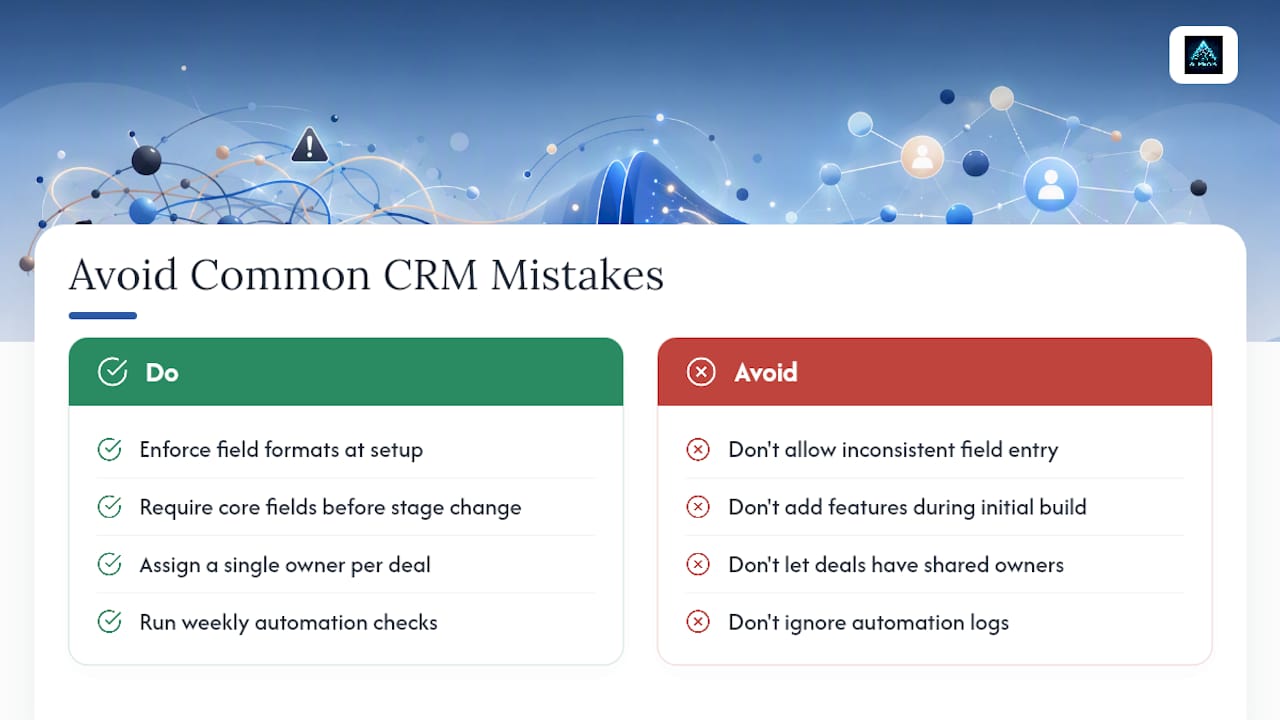
Data hygiene mistakes usually start small. A rep enters a phone number with dashes while another skips the area code. Multiply that across 200 contacts and your reports become unreliable within weeks. Fix this by enforcing field formats at setup, not after the fact, and by requiring the core fields your pipeline needs before a deal can move stages.
Scope creep is the other silent killer. It starts reasonably: "While we're in here, let's also add a marketing automation" or "let's integrate the accounting software too." Each addition delays go-live and adds complexity your team hasn't asked for yet. Stick to your original plan's scope, and write every "great idea" down in a backlog for the 90-day review instead of building it now.
A third, less obvious mistake is skipping the single-owner rule on deals. Shared ownership feels collaborative, but in practice it means everyone assumes someone else is handling the follow-up. Nobody actually is.
Watch for silent automation failures too. An automation that stops firing because a field got renamed can go unnoticed for weeks unless someone is checking logs, which is why the weekly check-in matters as much in month two as it does in week one.
Why Process Discipline Beats Automation Enthusiasm
Every small business owner I talk to about CRM setup wants to skip straight to automation. It's the shiny part. But the businesses that actually stick with their CRM past 90 days are the ones that got boring things right first: one owner per deal, required fields enforced from day one, and a pipeline that matches how the business actually works instead of a template.
The common pitfall tends to play out the same way almost every time. A team turns on five automations in week one, something breaks because a field was left blank, and by week three nobody trusts the system enough to open it. The fix isn't more automation. It's fewer automations, applied to cleaner data, expanded slowly.
Treat your CRM as a mirror of your process, not a replacement for having one.
How Does AI Peak Biz Fill the Gaps in Your New CRM?
Even a perfectly configured CRM has one weakness: it only works with the data that makes it in. If a call comes in while your team is on a job site, or a text arrives after hours, that lead either gets logged late or never gets logged at all. AI Peak Biz helps close that gap: on Ascent, an AI voice agent answers calls and books appointments by phone, and the contact lands in your CRM, so it's already there when your team sees the notification.
That flow matches the exact integration priority covered above: capture the lead, create the contact, book the appointment, log the activity automatically. AI Peak Biz runs around the clock, which means the missed-call gap that swallows a huge share of small business leads gets covered without hiring anyone. Features tie directly into your implementation checklist: 24/7 lead response, automatic qualification, and calendar booking that syncs with the pipeline stages you just built.
If you're curious how much a missed call is actually costing your business, run the numbers with the missed call revenue calculator, then check pricing or explore the AI appointment setter to see how it fits into the CRM setup you're building this month.
Where Can You Find More CRM Implementation Guidance?
- Your CRM Finder's implementation checklist breaks down the 5-week phased rollout referenced throughout this guide.
- Cedar Operations' 2-week framework shows a faster path for teams with process already mapped.
- Nutshell's planning guide covers when a consultant is worth the cost versus self-implementation.
- The U.S. Chamber's low-cost CRM roundup is useful for comparing free and entry-level plan options.
Sources
- CRM Implementation checklist for a small team (Your CRM Finder)
- CRM Implementation Without the $50K Consultant (Cedar Operations)
- CRM planning and implementation (Nutshell blog)
Recommended
- Speed to Lead: Why Responding in 5 Minutes Wins the Job